Setting up ChatGPT with the MCP Server
ChatGPT by OpenAI is a leading conversational AI that can be connected to the MCP server to access real-time SEO data from the SISTRIX API.
With this integration, ChatGPT evolves from a general assistant into a specialized interface for your SEO metrics. You can interact with your data using natural language by asking questions such as:
“What’s the Visibility Index for sistrix.com?”
“Analyze the latest keyword rankings for my domain.”
ChatGPT will automatically communicate with the MCP server, fetch the required data through the SISTRIX API, and provide you with clear, actionable insights directly in your chat interface.
To set it up, just follow these five simple steps:
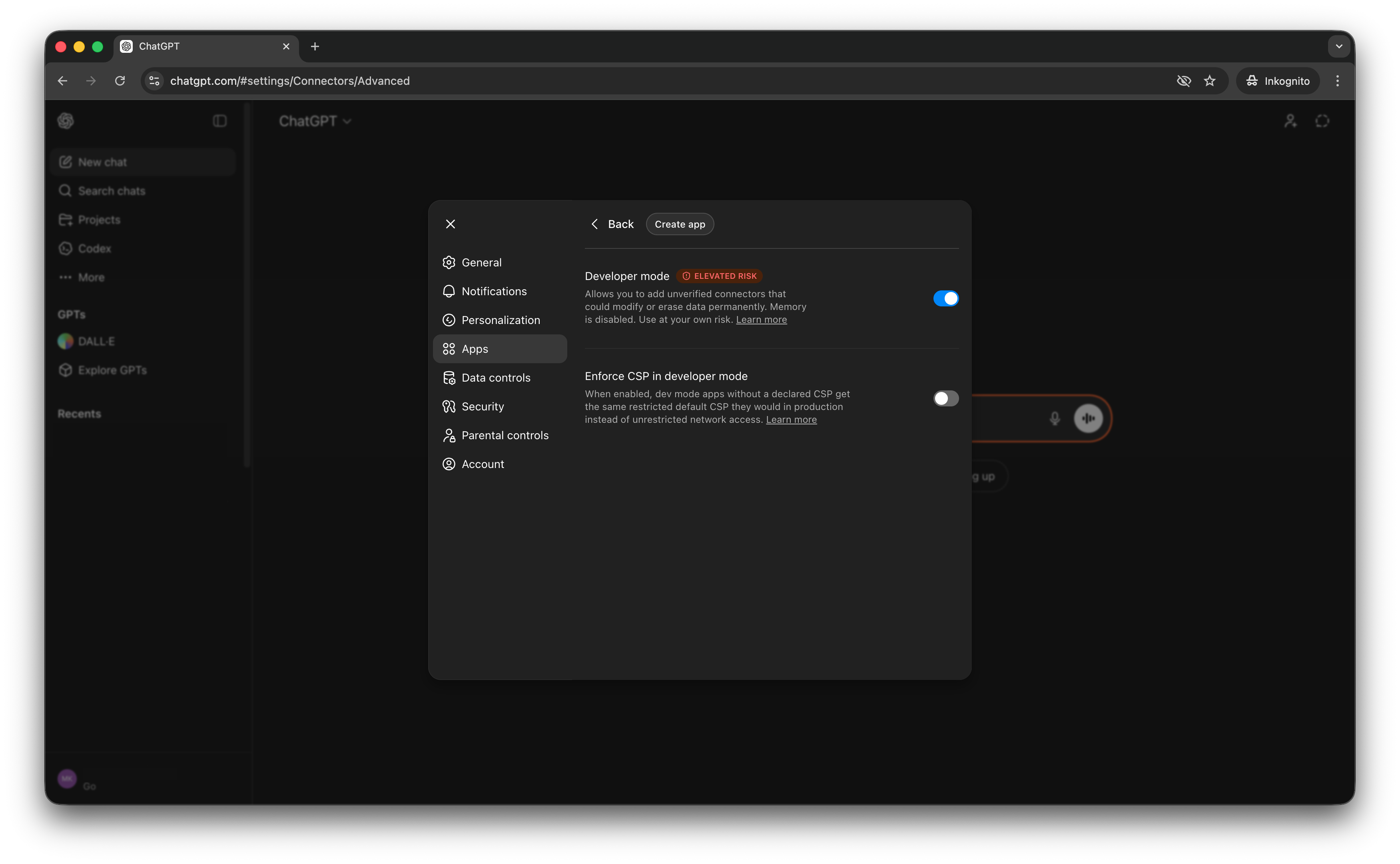
Step 1: Activate Developer Mode
To connect custom MCP servers like SISTRIX, you need to enable Developer Mode within the app settings.
- Open ChatGPT.
- Click on your Profile icon in the bottom-left corner and select Settings.
- In the sidebar, navigate to the Apps section.
- Click on Advanced Settings at the bottom of the Apps menu.
- Toggle Developer Mode to ON.
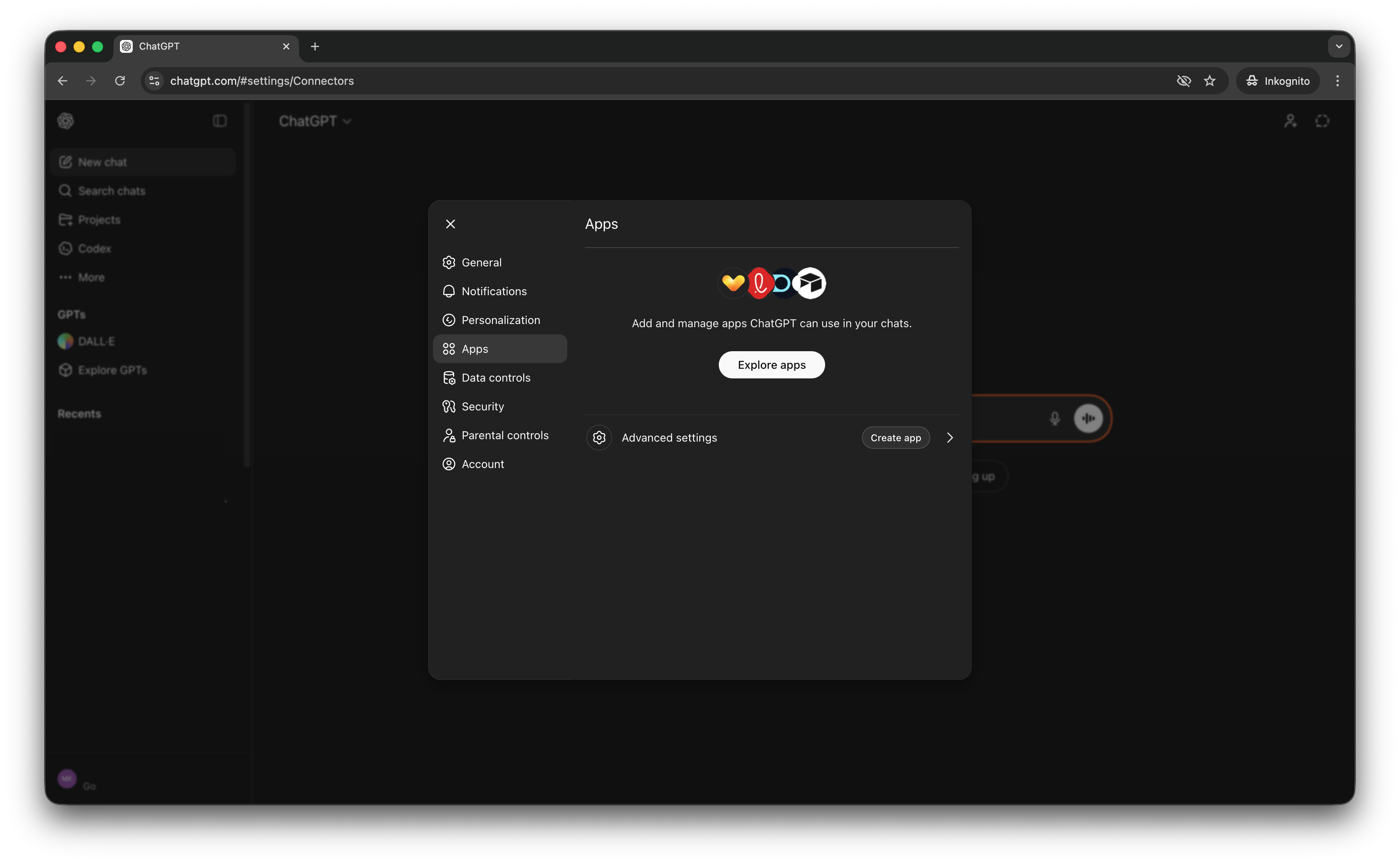
Step 2: Access the App Creation Window
After toggling on Developer Mode, a new Create App button will appear within the same settings menu. Simply click this button to open the configuration interface. This window is where you will define the connection parameters for the SISTRIX MCP server, transforming ChatGPT into a direct portal for your SEO data.
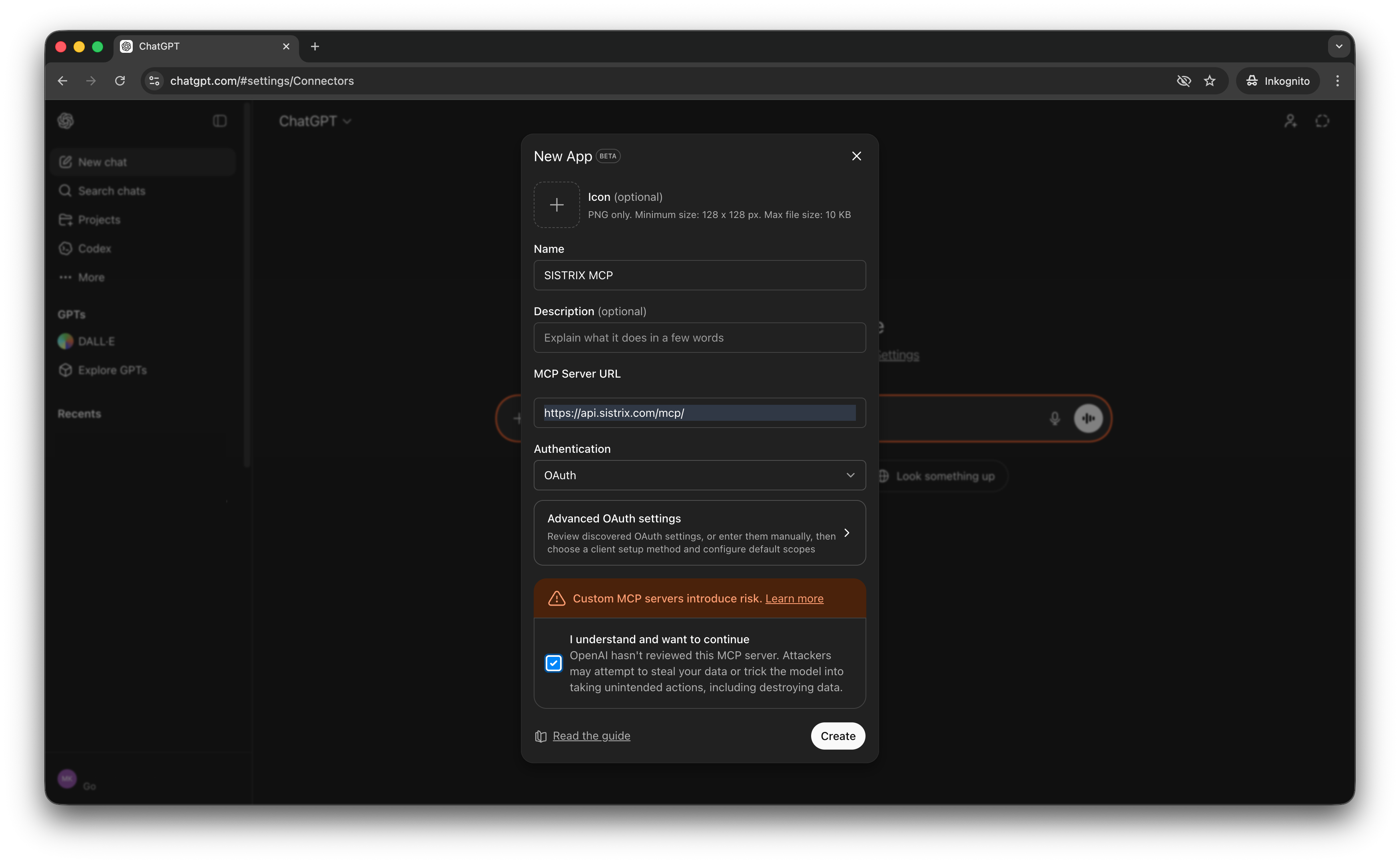
Step 3: Configure the Connection Details
In the configuration window, you can choose any name for the integration, such as “SISTRIX”, to easily identify it later. Enter the server URL as https://api.sistrix.com/mcp/ to point ChatGPT to the correct data source. For the authentication method, simply select OAuth from the available options and make sure to check the confirmation box to authorize the connection. Once these details are set, ChatGPT is ready to bridge the gap between your conversation and the SISTRIX API.
Step 4: Complete Authorization
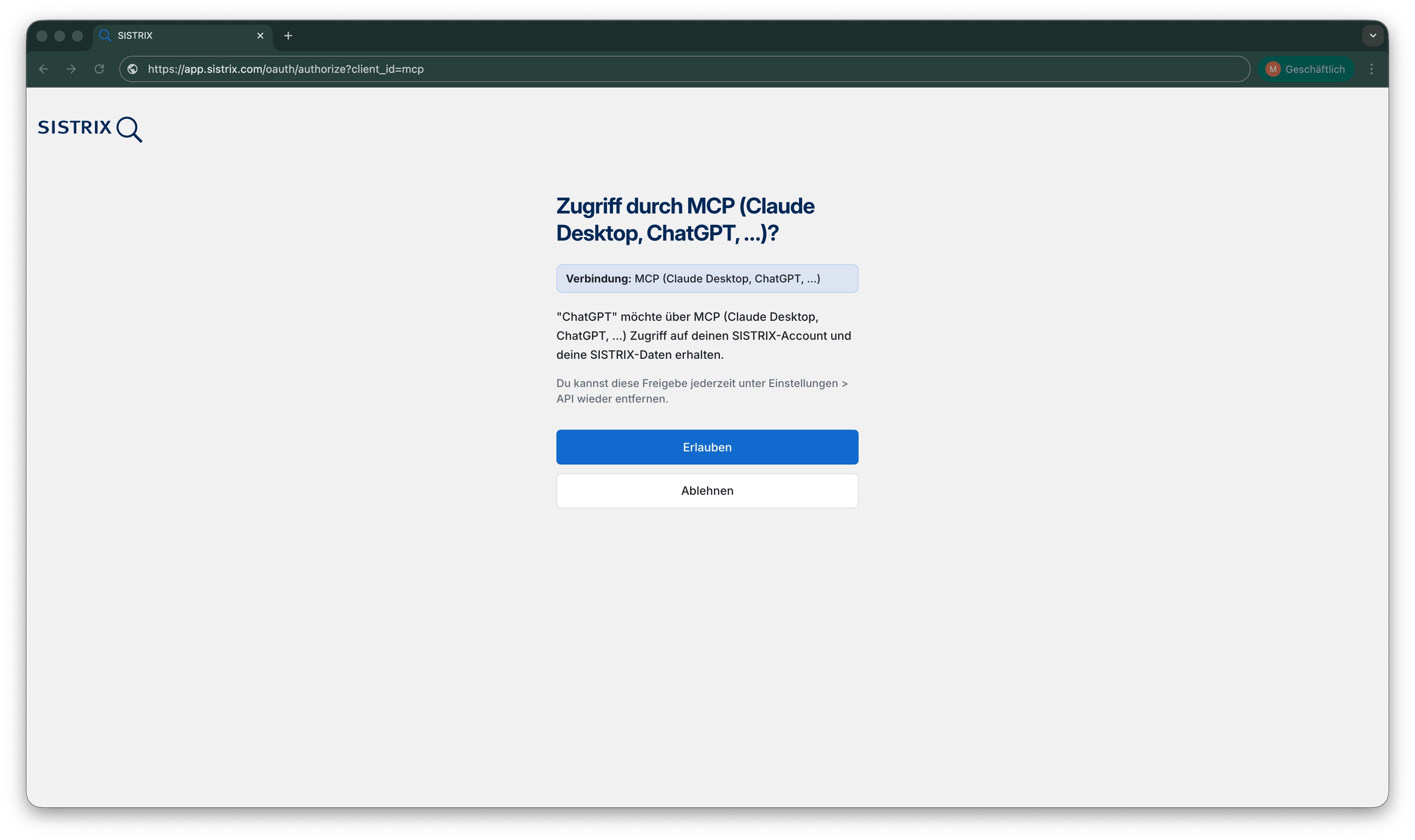
After clicking the Create button, a dedicated OAuth window will automatically open. Simply follow the on-screen instructions to authorize the connection by logging into your SISTRIX account. You do not need to manually copy an API key; the secure login will automatically link your account. Once this step is finished, the integration is fully active, and ChatGPT will have the necessary permissions to retrieve real-time SEO data for your queries.
Step 5: Start Using the Connector
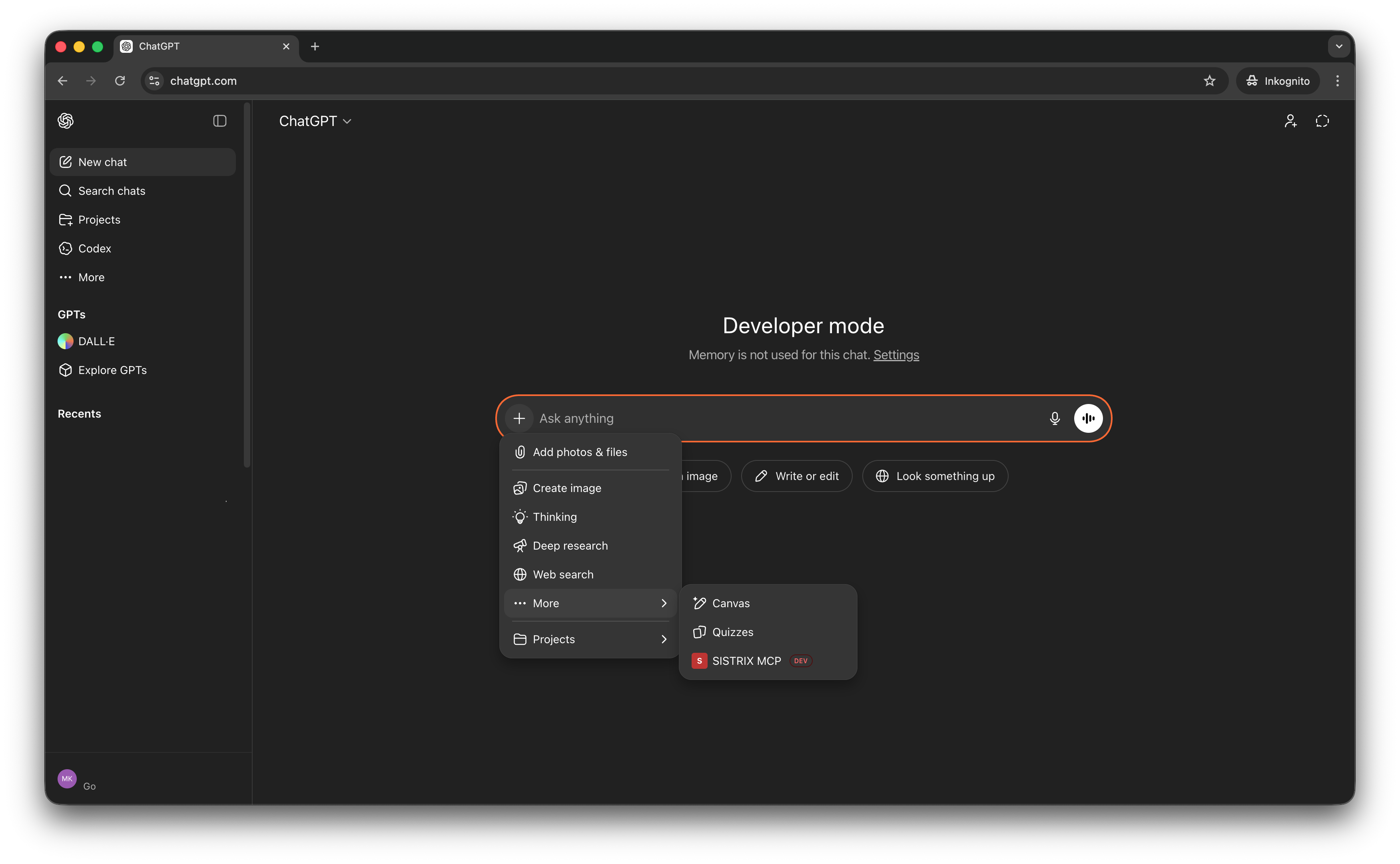
Now that the setup is complete, you can start using the connector immediately. Open a new chat, click the Plus (+) icon in the message bar, and navigate to the More menu to find and add your SISTRIX connection to the conversation. From this point on, you can ask any SEO-related questions, and ChatGPT will use the MCP server to provide you with real-time data from the SISTRIX API.