Setting up Claude AI with the MCP Server
Claude by Anthropic is a powerful conversational assistant that can be connected to the MCP server to access real-time SEO data from the SISTRIX API.
With this setup, Claude becomes more than a chatbot, it becomes a direct interface to your data. You can ask questions like:
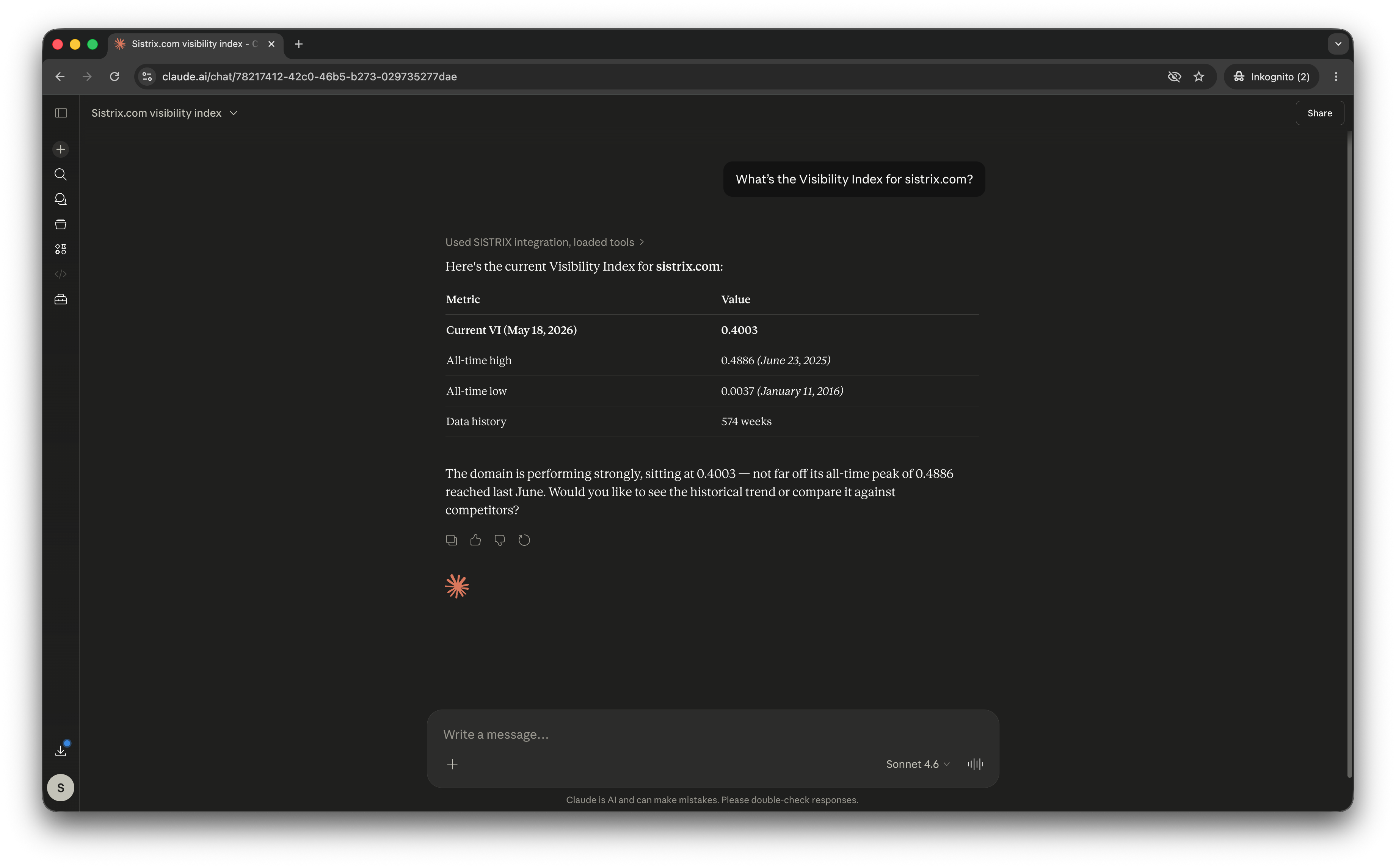
“What’s the Visibility Index for sistrix.de today?”
“Which keywords did my site ranks for?”
Claude will automatically query the MCP server, retrieve the correct data via the SISTRIX API, and reply in natural language.
Note: For Claude Team-plans, only the account owner has the permission to set up and configure custom MCP connectors.
To set it up, just follow these simple steps:
Step 1: Add a Custom Connector in Claude
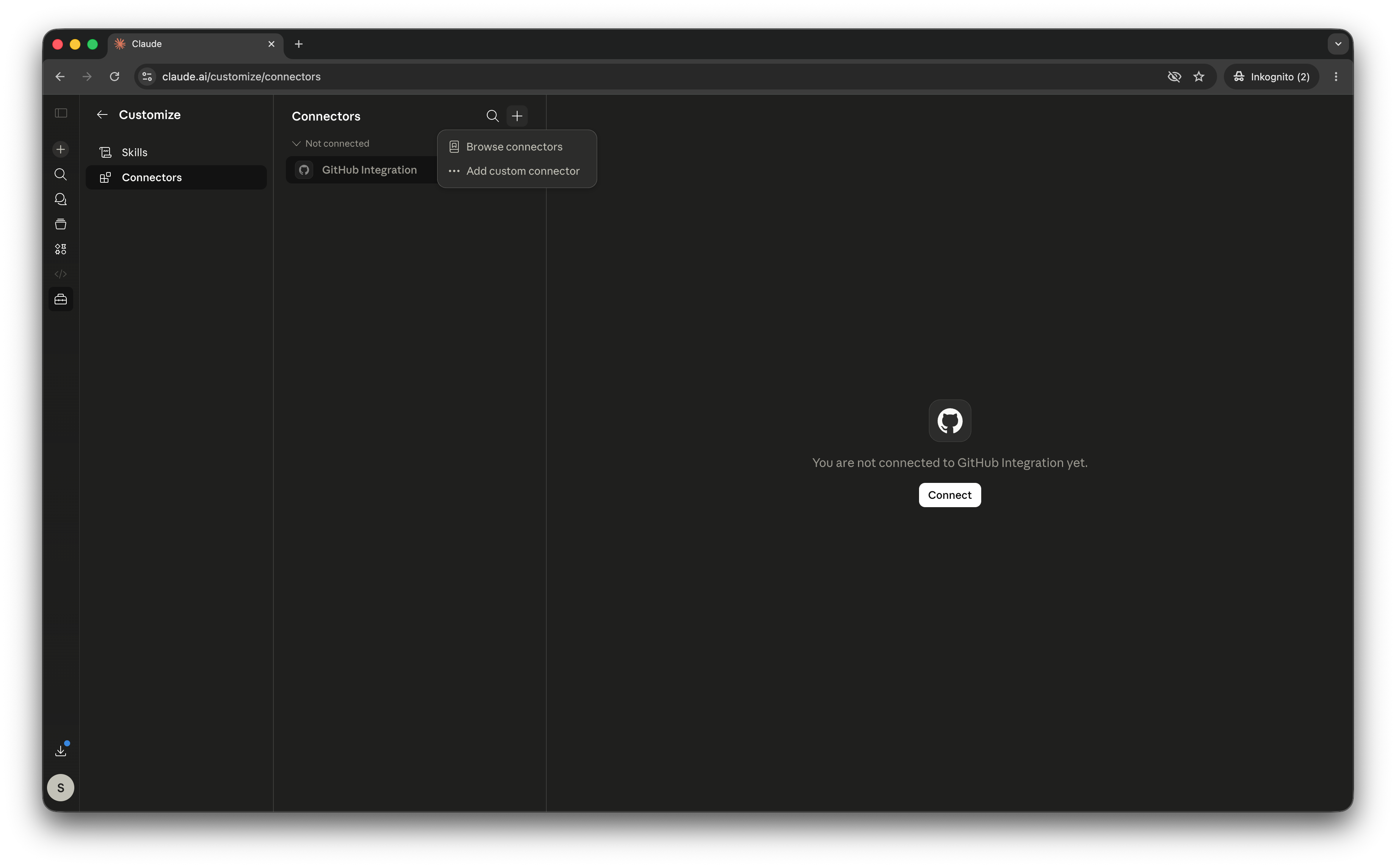
Log in to your Claude account. Then, navigate to the Custom Connectors page. Once you are there, click on the “+” (Plus) button or select “Add custom connector” to start the integration process.
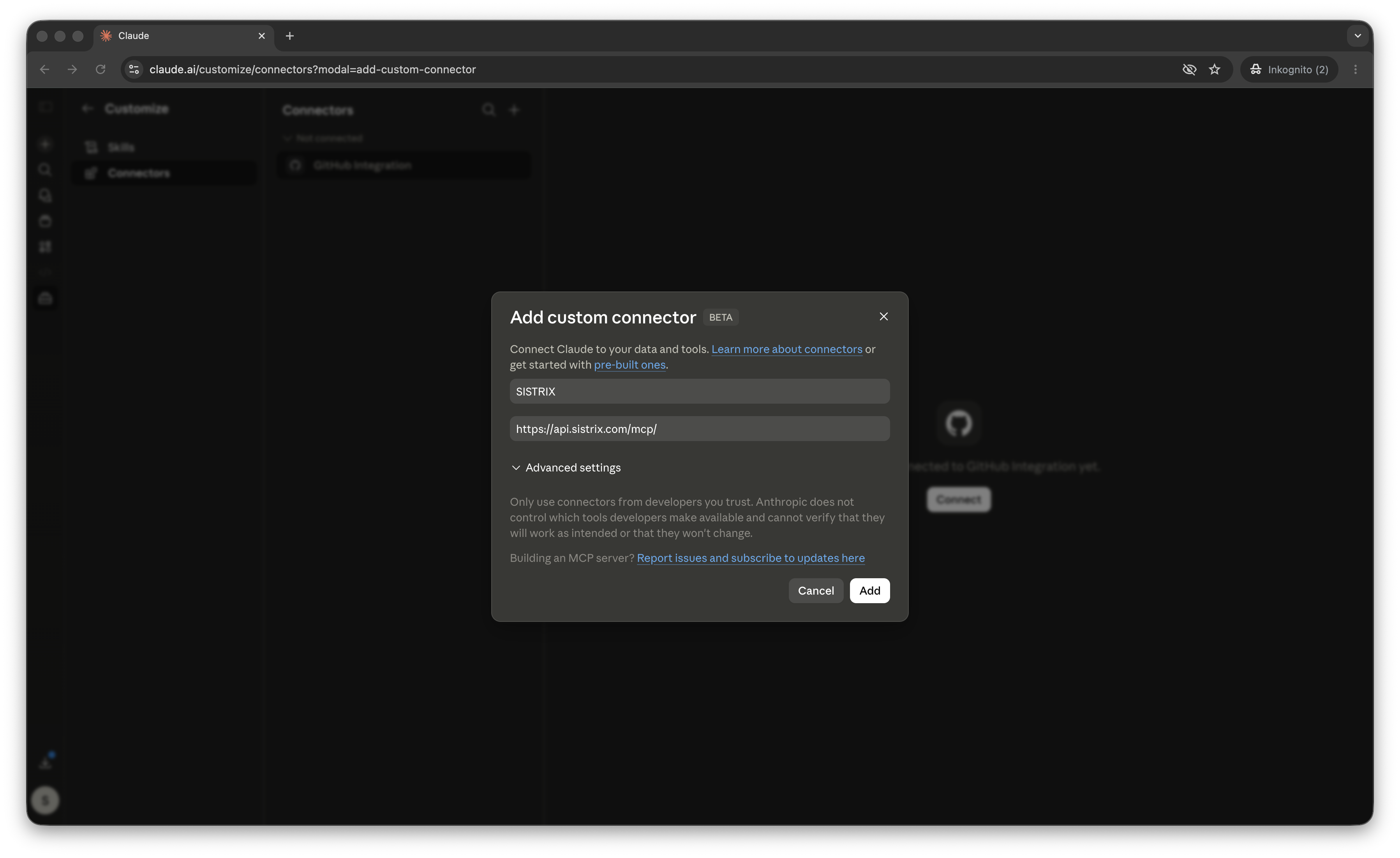
Step 2: Enter the Connector Details
In the “Add custom connector” pop-up window, fill in the fields. In the first field, enter a name for your connector (for example, “SISTRIX”). In the second field, enter the official MCP server URL: https://api.sistrix.com/mcp/. After entering these details, click on the “Add” button in the bottom right corner to proceed.
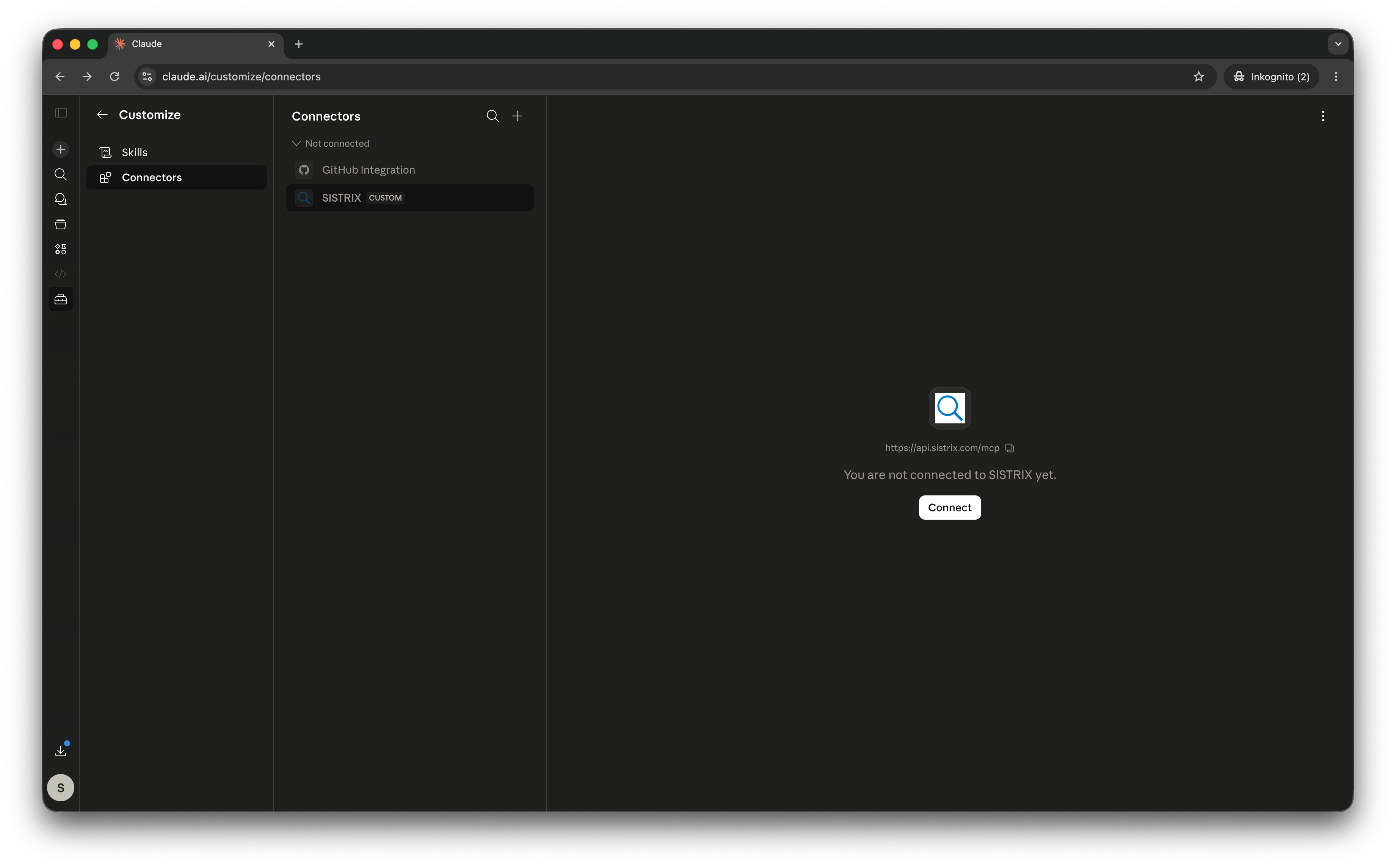
Step 3: Connect and Authorize the Connector
Once the connector has been added, select it from your Connectors list. If you are connecting for the first time, you will see a message stating that you are not connected yet. Click on the white “Connect” button in the center of the screen to start the authorization process and link Claude to your SISTRIX account.
Note: If a valid connection already exists, Claude will bypass the authorization step and directly display the available endpoints. In this case, you can skip all remaining steps.
Step 4: Grant Access in SISTRIX
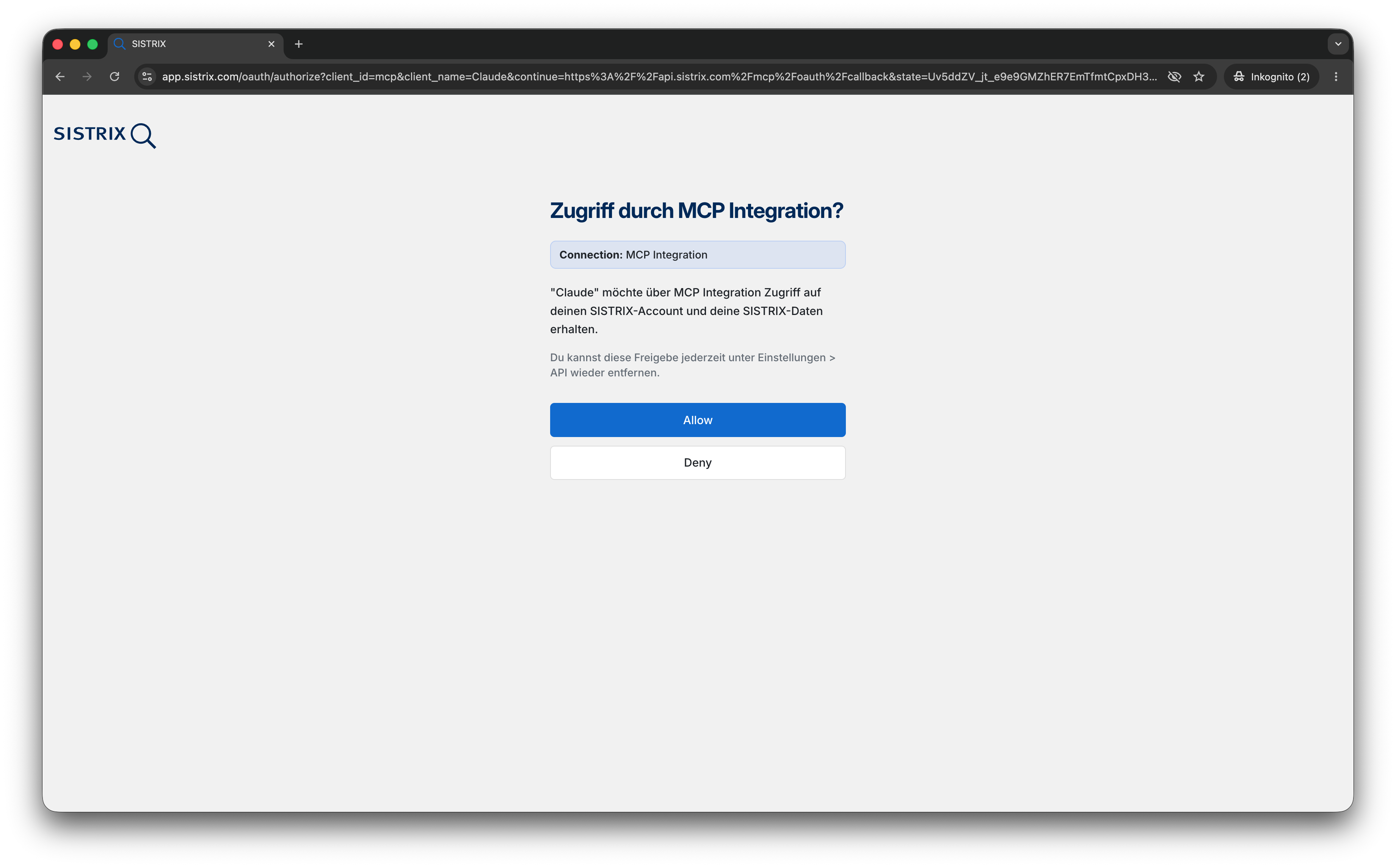
Clicking “Connect” will open a new browser window or tab redirecting you to the SISTRIX authorization page. If you are not logged in to SISTRIX yet, you will be prompted to do so. Once logged in, you will see a confirmation screen asking “Zugriff durch MCP Integration?”. Click on the blue “Allow” button to grant Claude access to your SISTRIX account and data.
Step 5: Verify and Use the Integration
After granting access, you will be redirected back to Claude. The connector page will now automatically refresh and display a list of all available endpoints, confirming that the setup was successful. You can now open a new chat and start interacting with your data. For example, ask Claude: “What’s the Visibility Index for sistrix.com?”. Claude will use the SISTRIX integration under the hood to pull the real-time metrics and provide the answer directly in your chat window.