Unclear error messages, interrupted crawls with no apparent cause, and a lack of comparison options for keyword groups make day-to-day work on on-page projects difficult. Based on user feedback and as part of a general overhaul, we have now improved the way on-page projects are managed in several areas.
Tag-based comparisons in the Project Visibility Index
A domain’s overall visibility is important, but it often doesn’t tell the whole story. To find out, for example, how individual topic areas are performing, whether product pages are performing better than how-to content, or whether a particular topic cluster is catching up with the competition, keyword sets could previously be tagged when uploaded to an on-page project to generate a custom project visibility index. We have now expanded this feature.
We explain step by step how to create a new project, add keywords and assign these tags in the tutorial ‘Create your own visibility index’.
In the project visibility index graph, you can now combine and compare up to 5 domains with previously assigned tags. Using the ‘Edit chart’ cog icon, you can enter domains and optionally select tags. This shows how individual keyword groups develop over time.
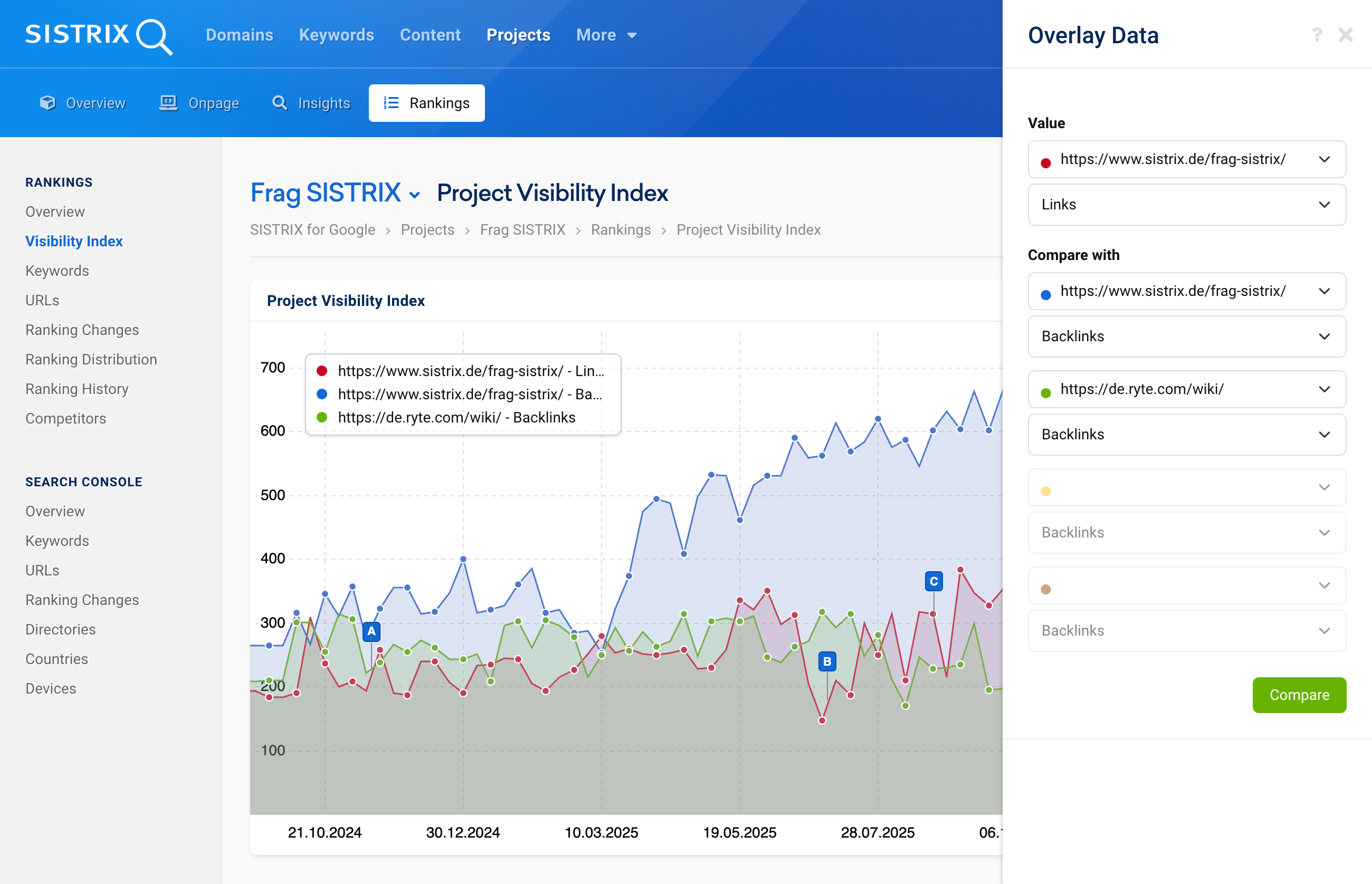
This feature allows you to compare different tags within the same domain as well as to directly compare them with competitors. For example, you can compare your own brand keywords against a competitor’s product pages or benchmark different subject areas within a project against one another.
Contextual error messages with hints on how to resolve them
An aborted crawl raises the question: is it down to the project configuration, the web server, or a faulty robots.txt file? Until now, finding the answer often involved a laborious process of piecing it together yourself.
When crawls abort or do not run through completely, SISTRIX now shows you straight away what the problem is. Information boxes with clear explanations and a direct link to the relevant FAQ article save you the trouble of troubleshooting. Instead of wondering where the problem lies, you get a direct indication of the cause.
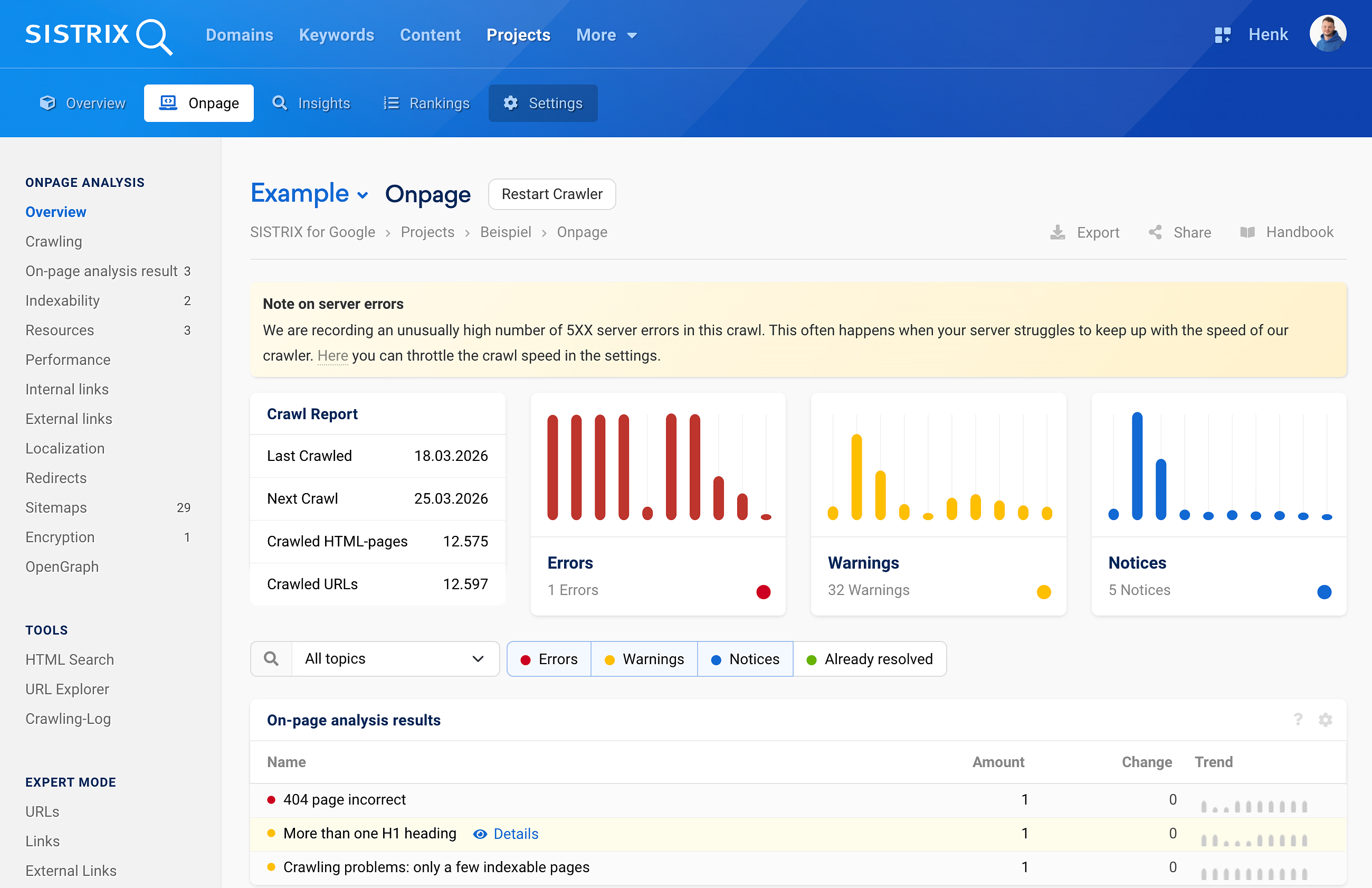
New error handling: Canonical on 404
A canonical tag that points to a non-existent page is a classic mistake that affects indexing. If a page uses a canonical tag to point to a 404 or 410 page, Google cannot decide which version to index. The problem is that this error often goes unnoticed during manual checks.
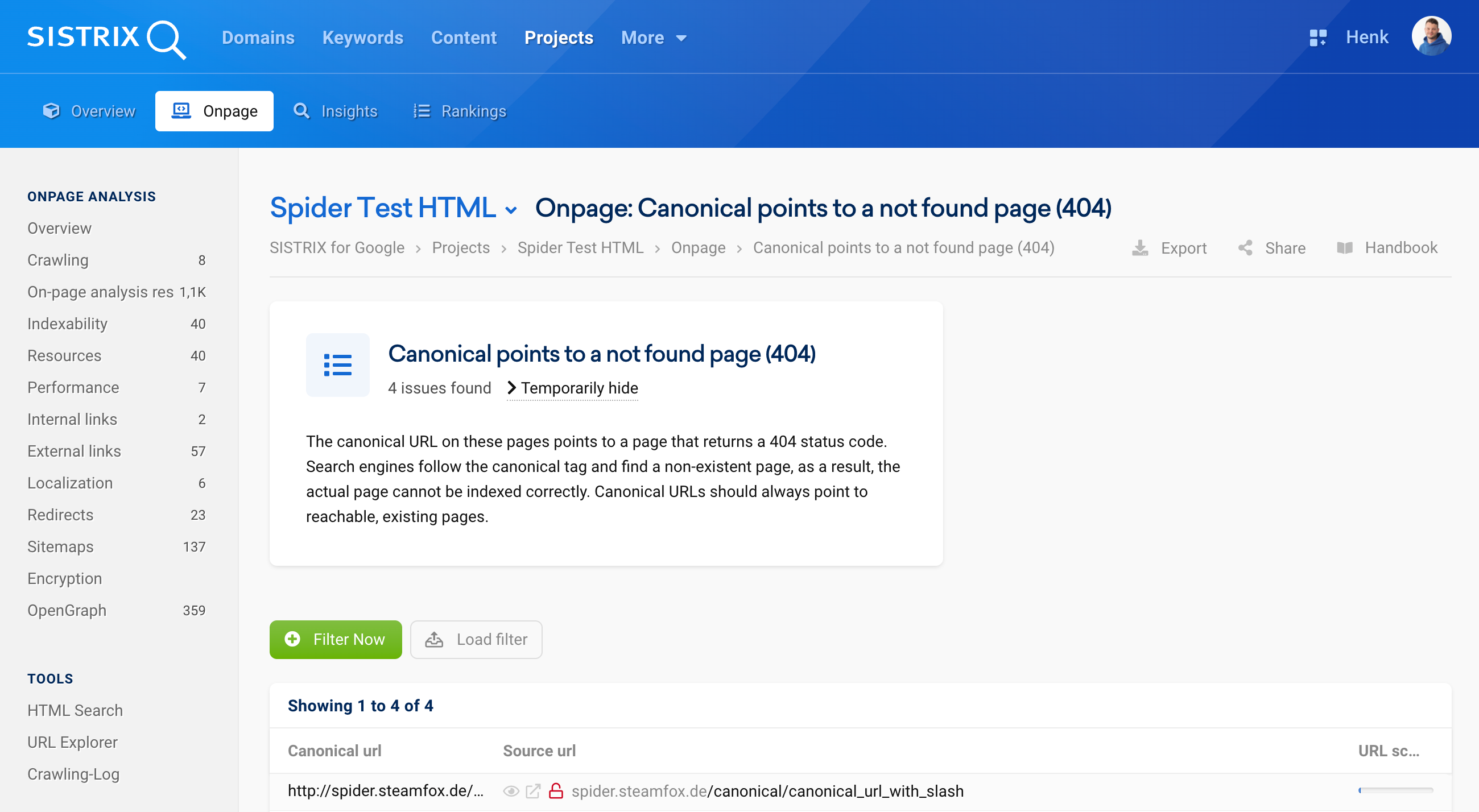
The crawler now automatically detects when a canonical tag points to a non-existent page and lists these instances as error messages. This allows these critical issues to be identified and resolved immediately.
Mark error messages as resolved or hide them
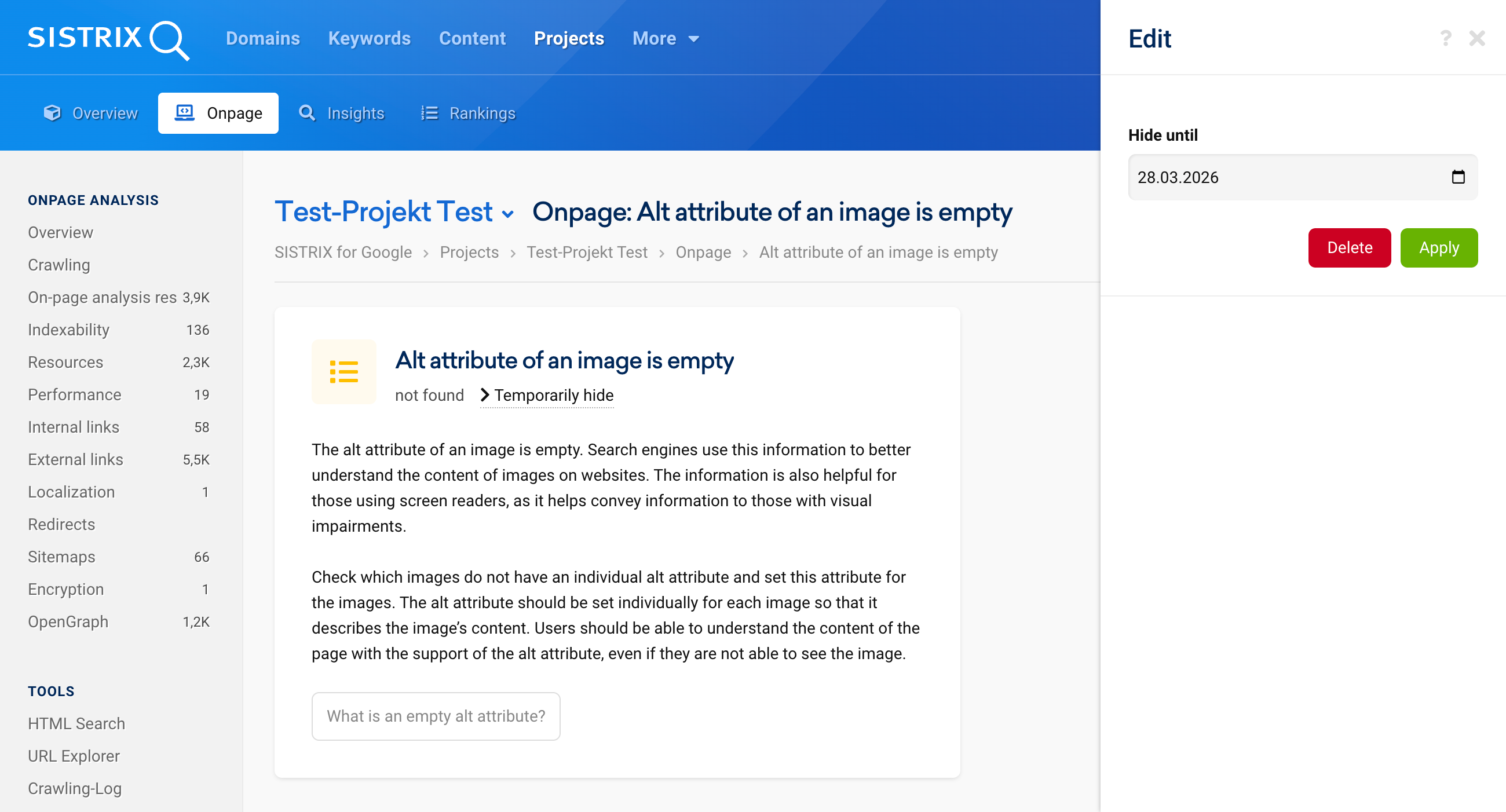
Some error messages cannot be resolved immediately because they are dependent on planned relaunch phases or are deliberately tolerated. Nevertheless, they reappear with every crawl and distract attention from the truly urgent issues.
Error messages can now be specifically marked as resolved or hidden for a specific period. Simply click on ‘Hide temporarily’, set the date, and you’re done. If no date is set, the error remains hidden permanently.
Status updates in the Livelog during analysis
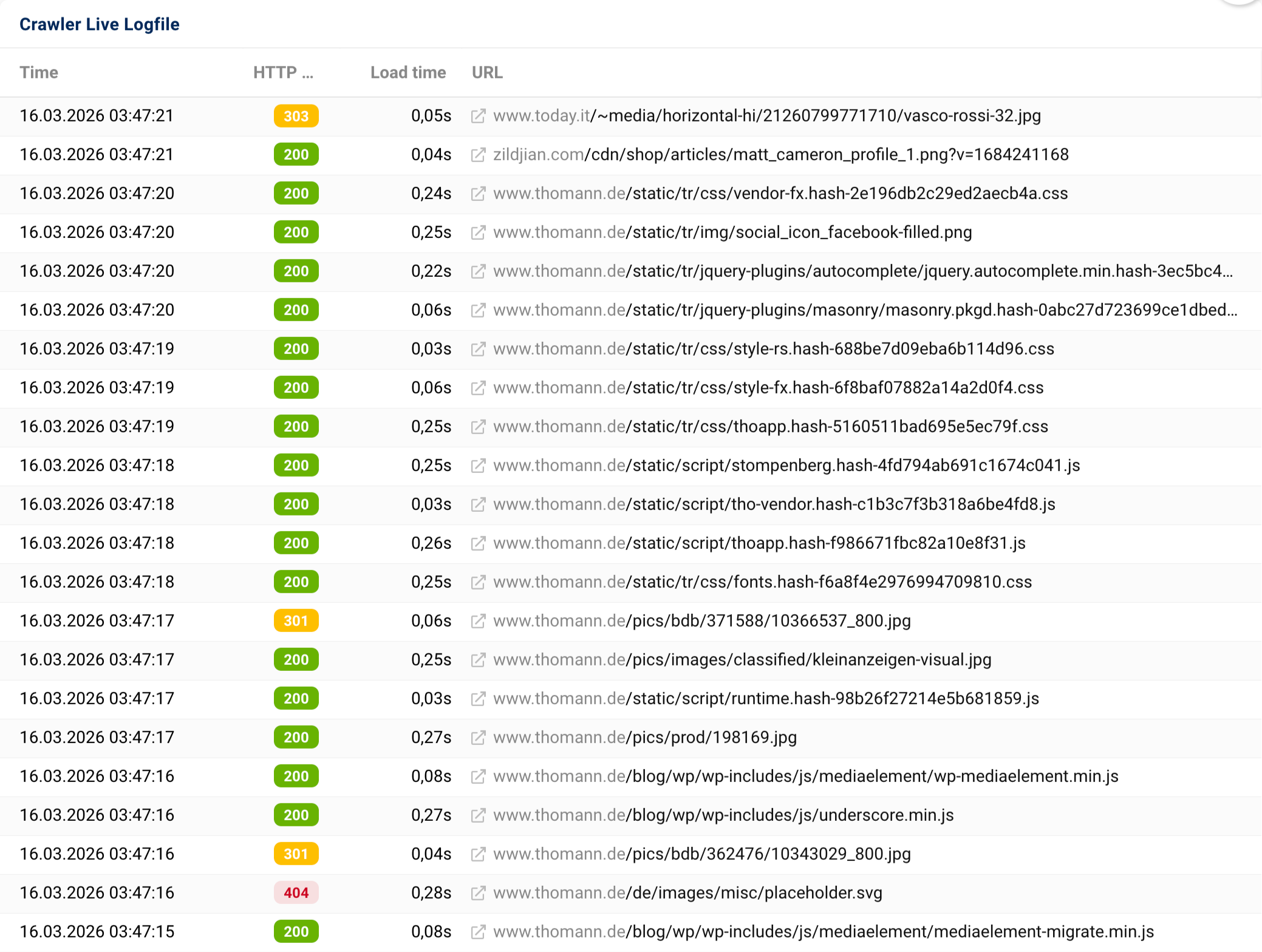
Exactly what happens whilst the crawler is running has remained unclear until now. This has often led to the question: Is the crawler still running at all, or has it frozen?
The live log now displays the individual steps even whilst the crawl is in progress. This makes it clearer what is happening in the background and whether the crawl is running as planned.
We explain step by step how to carry out on-page analyses with SISTRIX, how to create a new project and how to evaluate it in the tutorial ‘On-page optimisation with SISTRIX’.
All improvements are now available
The revamp of the on-page projects brings greater transparency to error analysis, more control over warning messages, and deeper insights into the performance of individual topic areas. All features are now available in all SISTRIX accounts.
Have fun trying them out! As always, we look forward to receiving your feedback at support@sistrix.com.